DreamFace

En
    Language
  • English
  • Português
  • 简体中文
  • 繁體中文
  • 日本語
  • Español
  • Bahasa Indonesia
  • ไทย
  • Tiếng Việt
  • हिंदी
  • Русский
  • Italiano
  • 한국어
  • मराठी
  • Nederlands
  • Norsk
  • ਪੰਜਾਬੀ
  • Polski
  • Dansk
  • Suomi
  • Français
  • Deutsch
  • Svenska
  • Kiswahili
  • తెలుగు
  • Türkçe
  • বাংলা
  • اردو
  • العربية
  • فارسی
  • Ελληνικά
Start Now
left
Chrome Store
4.9

Chrome Store

right
left
20,000,000+

Global Users

right
left
Apple Store
4.9

Apple Store

right

We trusted by Famous institutions worldwide

How to Use Seedance 2.0?

step1

Write a Structured Prompt

Describe your subject and environment clearly, then add camera movement (push-in, orbit, tracking shot), shot type (full, medium, close-up), visual style, atmosphere, and quality modifiers like 4K Ultra-HD and smooth motion. You can also upload a reference image to improve character consistency.

step2

Select Aspect Ratio & Resolution

Choose the format that fits your platform, such as 16:9 for cinematic content or 9:16 for short-form videos, and enable high resolution with stability settings to ensure sharp visuals, smooth motion, and flicker-free output.

step3

Generate & Download

Generate your AI video, review the output, and refine your prompt if necessary to improve clarity or motion control, then download the final version in high resolution once you achieve the desired cinematic result.

Features of Seedance 2.0 Prompt Guide

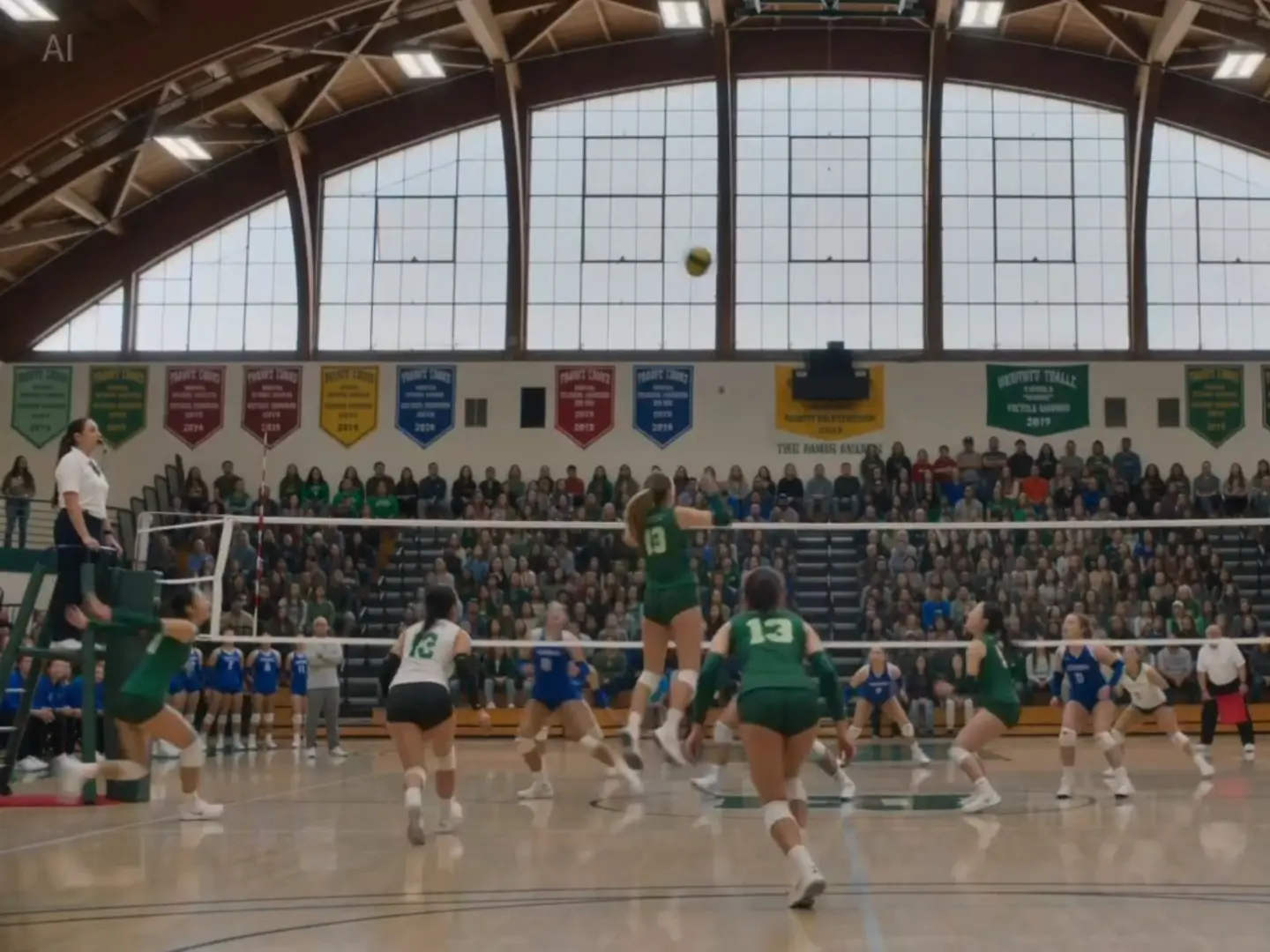
Orchestrating Dynamic Camera Movements

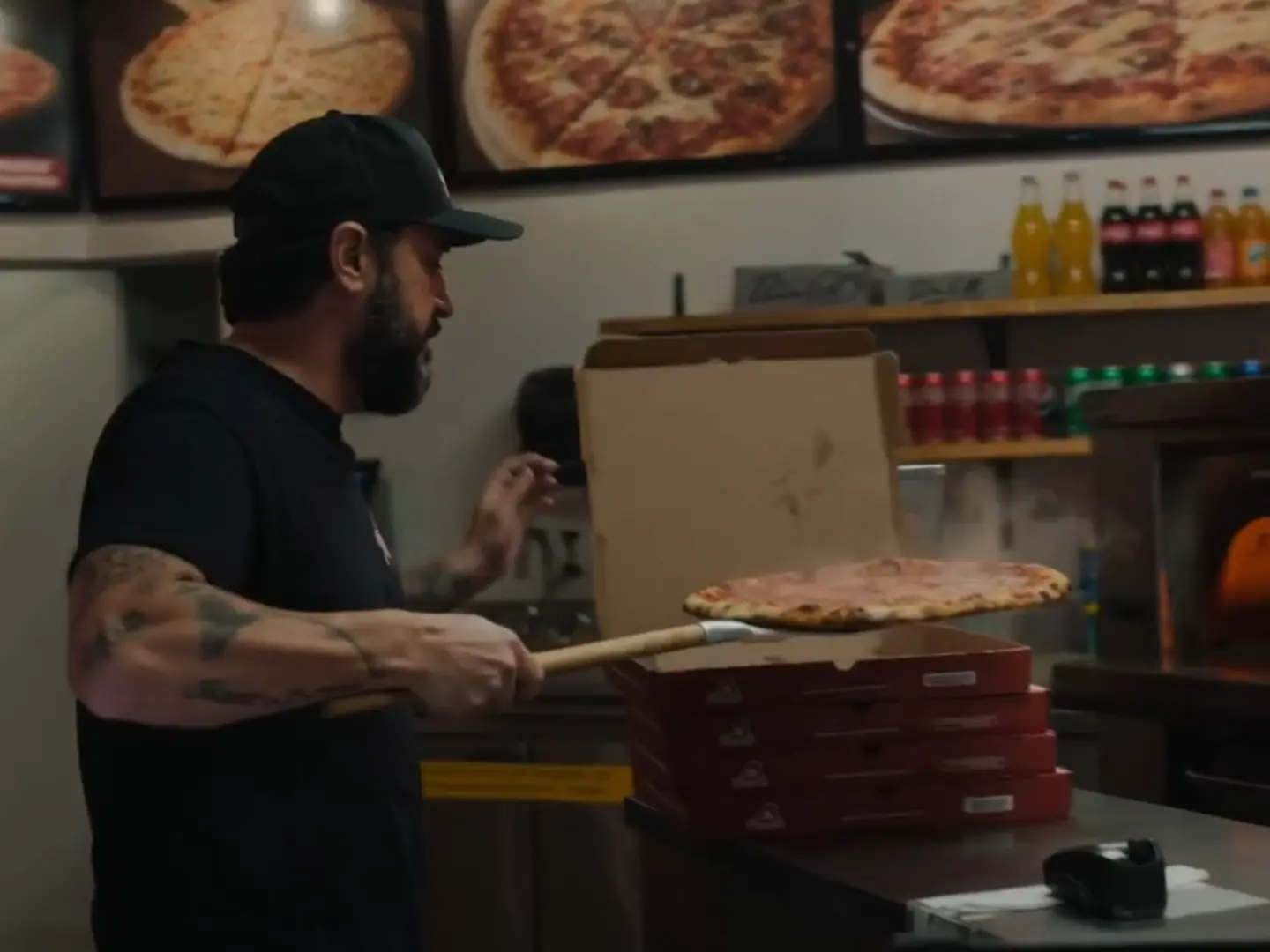
Mastering the camera is the first step in cinematic storytelling. To create professional transitions, utilize the Push and Pull techniques to smoothly transition between distant environments and focal subjects. For a more immersive experience, implement the Orbit movement to rotate around a subject, adding a sense of depth and three-dimensionality. By combining these with Tracking shots, you can maintain a seamless focus on moving targets, ensuring your narrative flow remains fluid and purposeful.
Orchestrating Dynamic Camera Movements

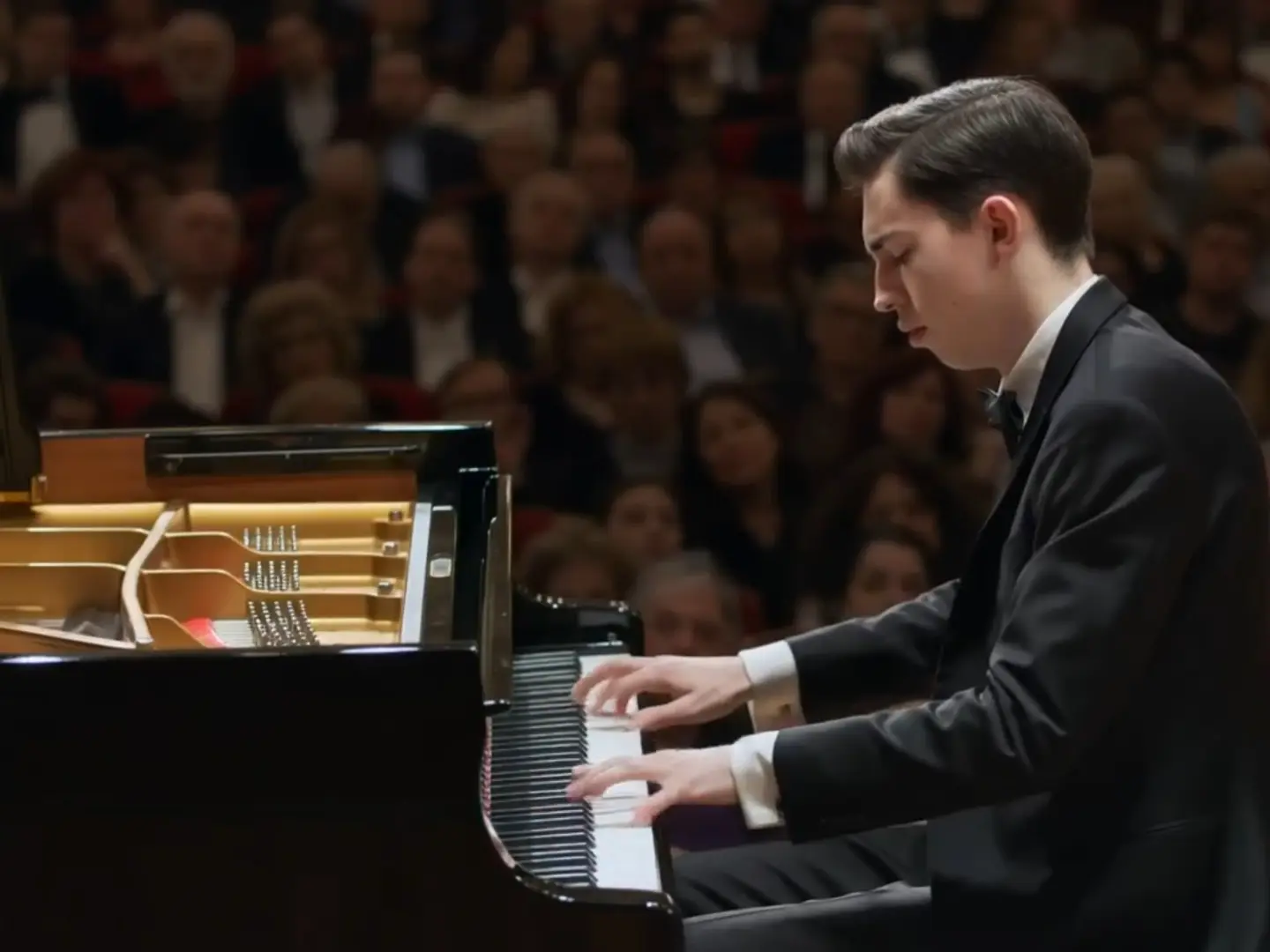
Composing Scenes with Precision Shot Types

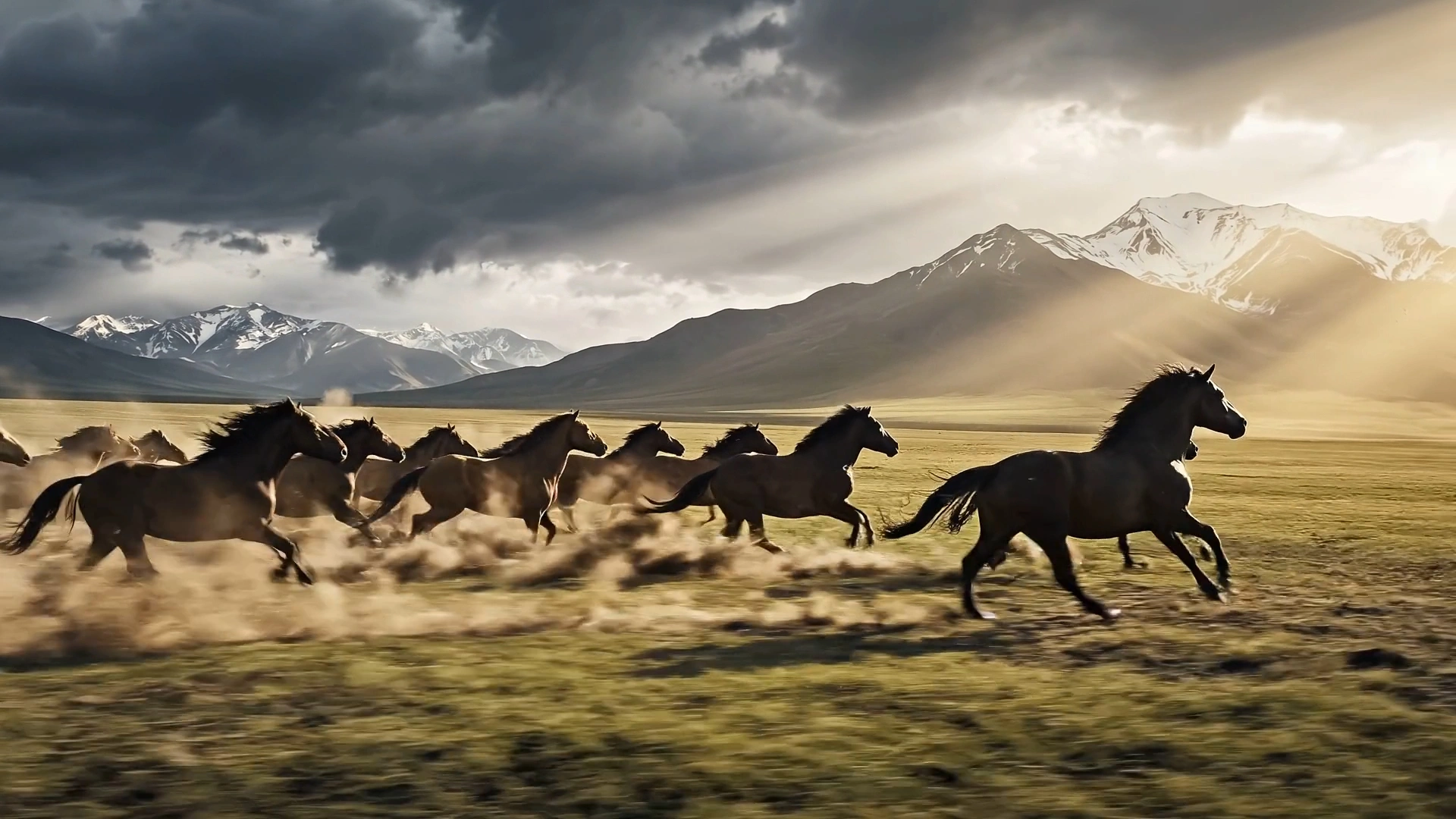
Great visuals depend on how you frame your subject. Start by using Full Shots to establish the setting and provide your audience with the complete context of the scene. When the narrative shifts toward character emotion, transition into Medium Shots to highlight upper-body movements and interactions. For the most intense moments, employ Close-ups to focus strictly on facial expressions or intricate details, allowing the viewer to connect deeply with the specific elements of your story.
Composing Scenes with Precision Shot Types

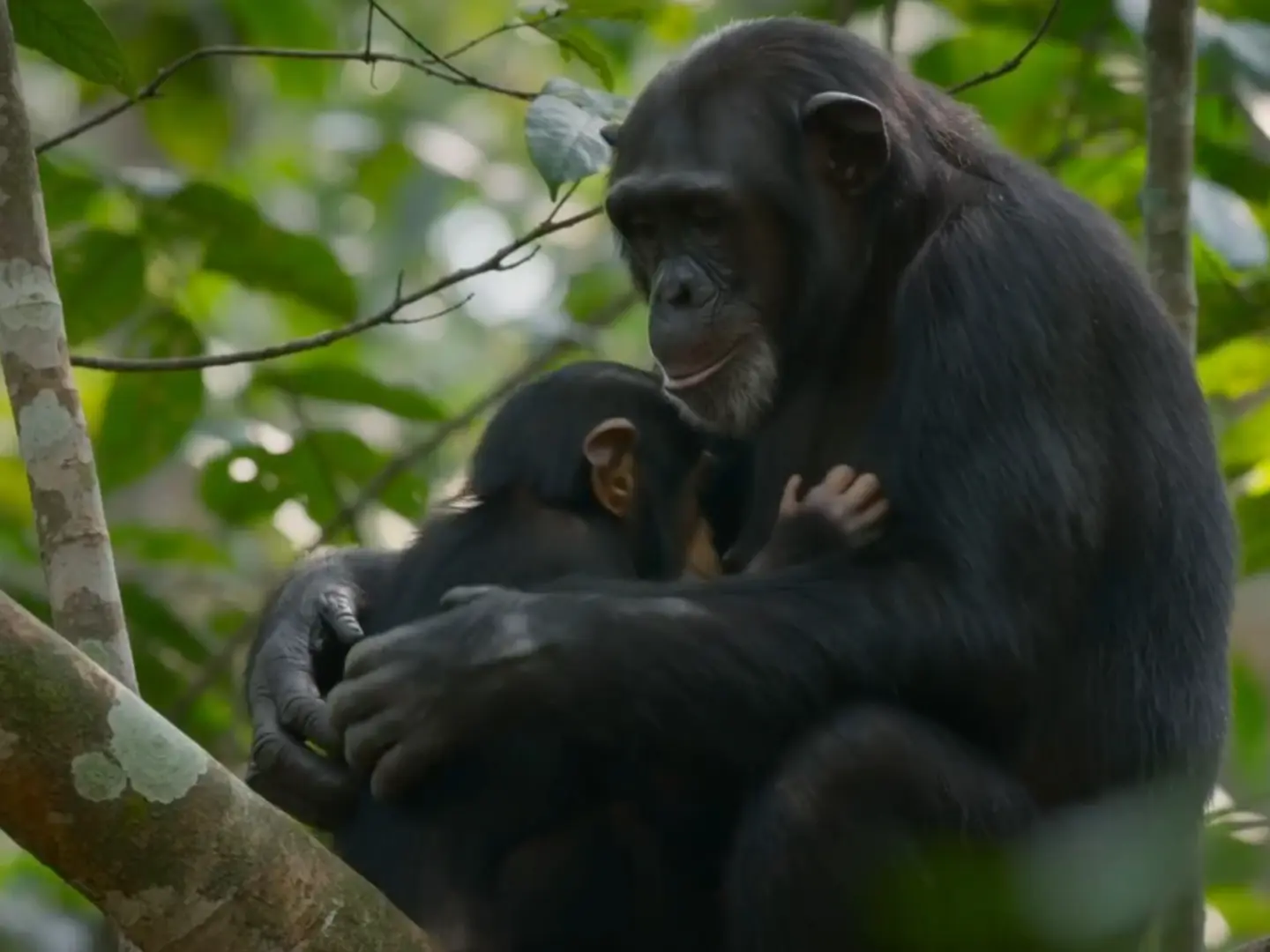
Defining Atmosphere through Visual Styles

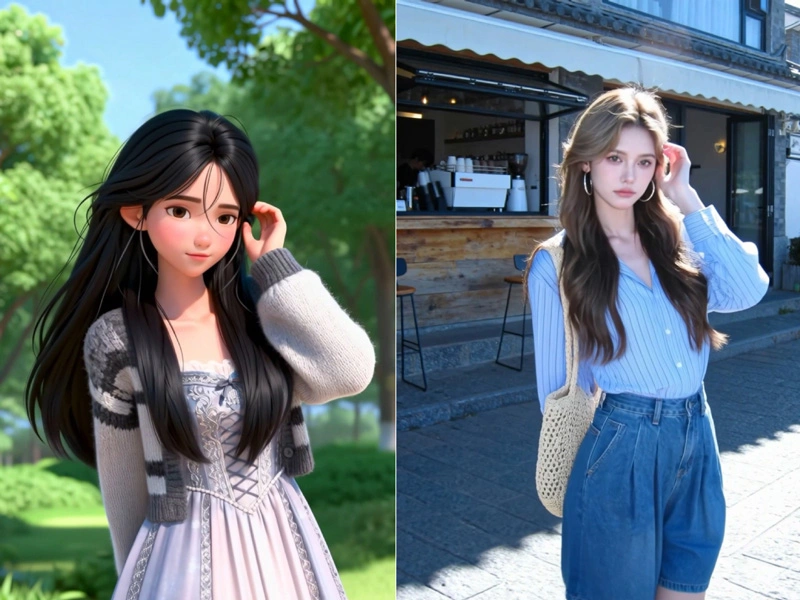
Elevate your creative output by applying curated aesthetic styles and emotional moods. You can instantly shift the narrative tone by selecting a Healing style for soft, natural lighting, or a Cinematic style to introduce 35mm film grain and dramatic shadows. To further refine the viewer's experience, layer these visuals with specific Atmosphere Modifiers—choosing between epic grandeur, mysterious suspense, or romantic warmth—to ensure every frame aligns with your desired emotional impact.
Defining Atmosphere through Visual Styles

Optimizing for Ultra-HD Stability and Clarity

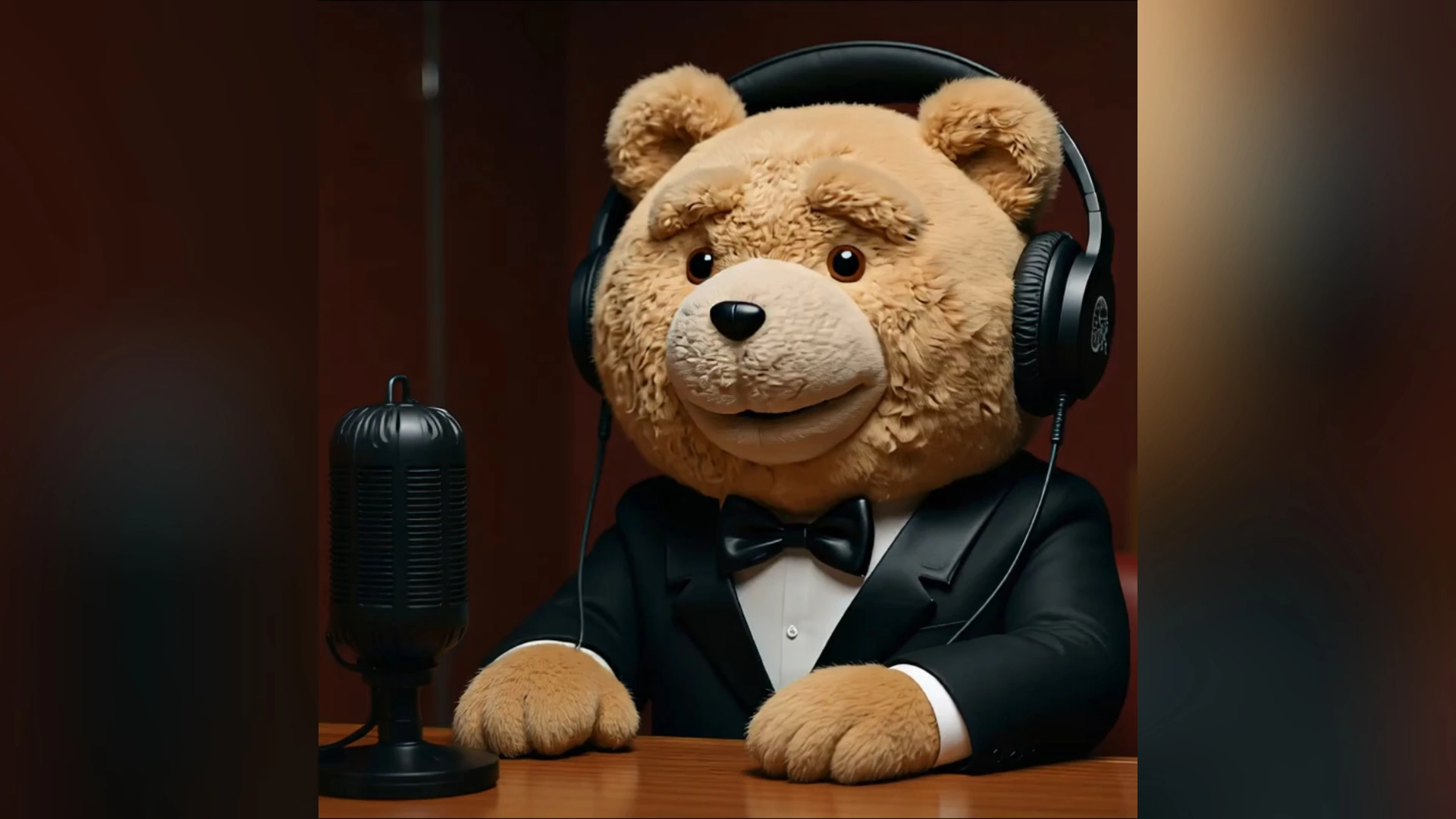
Finalizing a high-quality production requires technical precision in both resolution and motion. Always configure your output to 4K Ultra-HD to ensure rich detail and high color saturation. To achieve a professional steady-cam effect, apply Stability Modifiers that eliminate motion blur and jitter. By utilizing these settings for uniform speed and silky-smooth transitions, you guarantee a flicker-free, cinematic result that maintains visual integrity across any screen.
Optimizing for Ultra-HD Stability and Clarity

Frequently Asked Questions

Why Choose Seedance 2.0 Prompt Guide?

Structured Prompt Framework

We provide a proven Seedance 2.0 prompt structure designed to improve clarity, stability, and cinematic control. Our framework helps you reduce randomness and generate consistent AI video results.

Cinematic Camera Expertise

Our guide focuses on professional camera language, including push-in, orbit, tracking shots, and composition techniques. This allows you to create AI videos that feel intentional and film-quality.

Optimized 4K & Stability Techniques

We show you how to use quality modifiers, 4K Ultra-HD settings, and motion stability controls to eliminate flicker, distortion, and jitter for smoother, sharper AI video output.

Practical, Real-World Examples

Instead of theory, we provide actionable prompt examples you can copy, adapt, and test immediately. This shortens your learning curve and improves your AI video workflow efficiency.

More Valuable Features from Dreamface

AI Video Generator
Generate realistic AI voices with emotion and clarity.
Dream Act
Turn static images into lifelike animated performances.
Avatar Video
Create stunning lifelike avatar videos effortlessly with AI.
Dream Avatar 3.0
Full-body AI avatars with expressive motion and speed.

They Love Dreamface

Clear Prompt Structure Made a Huge Difference

I used to write very short prompts and my AI videos felt random. After following the Seedance 2.0 prompt structure—adding camera movement, shot type, and 4K settings—my results instantly became more cinematic and stable.

Camera Language Changed Everything

Learning how to write push-in, orbit, and tracking shots directly into my Seedance 2.0 prompts made my videos look professionally directed. The camera control tips in this guide are incredibly practical.

My Character Consistency Improved

I didn’t realize how important consistent wording was. Once I kept my character description stable and uploaded a reference image, my AI video outputs became much more consistent across scenes.

Adding Atmosphere Keywords Boosted Quality

Using atmosphere modifiers like cinematic, dramatic lighting, and 35mm film grain made a huge difference. My prompts now feel more intentional instead of generic.

4K and Stability Modifiers Are Essential

Before reading this guide, I didn’t include quality settings in my prompts. Adding 4K Ultra-HD, smooth motion, and no flicker significantly improved clarity and motion stability.

Structured Prompts Save Time

This Seedance 2.0 Prompt Guide helped me stop guessing. Following a clear prompt formula reduced the number of generations I needed and made my AI video workflow much more efficient.

Clear Prompt Structure Made a Huge Difference

I used to write very short prompts and my AI videos felt random. After following the Seedance 2.0 prompt structure—adding camera movement, shot type, and 4K settings—my results instantly became more cinematic and stable.

Camera Language Changed Everything

Learning how to write push-in, orbit, and tracking shots directly into my Seedance 2.0 prompts made my videos look professionally directed. The camera control tips in this guide are incredibly practical.

My Character Consistency Improved

I didn’t realize how important consistent wording was. Once I kept my character description stable and uploaded a reference image, my AI video outputs became much more consistent across scenes.

Adding Atmosphere Keywords Boosted Quality

Using atmosphere modifiers like cinematic, dramatic lighting, and 35mm film grain made a huge difference. My prompts now feel more intentional instead of generic.

4K and Stability Modifiers Are Essential

Before reading this guide, I didn’t include quality settings in my prompts. Adding 4K Ultra-HD, smooth motion, and no flicker significantly improved clarity and motion stability.

Structured Prompts Save Time

This Seedance 2.0 Prompt Guide helped me stop guessing. Following a clear prompt formula reduced the number of generations I needed and made my AI video workflow much more efficient.