


AI Video Animation Generator
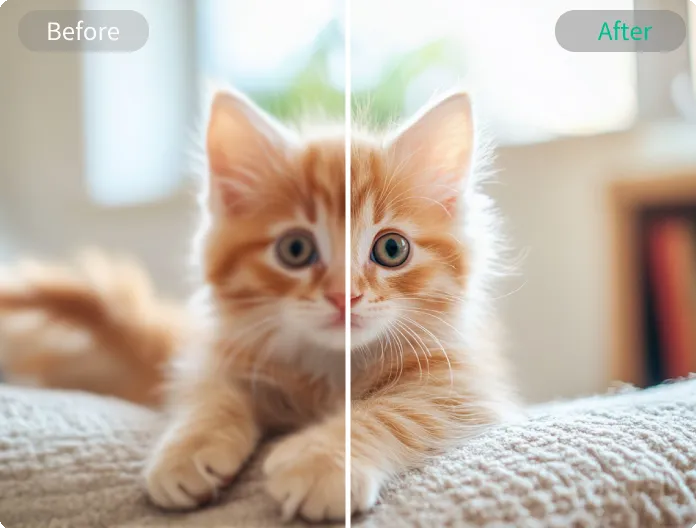
A flat illustration doesn't have to stay still. Upload a drawing or character piece, and DreamFace adds small idle motion, a blink, a shift, a bit of depth between layers, so the art reads as alive instead of getting the same zoom-and-pan treatment as a photo.


'%3e%3cg%3e%3cpath%20d='M11.1034615625,1.816990478790283C11.4702615625,1.0737404787902831,12.5300515625,1.0737404787902831,12.8968515625,1.816990478790283L15.2941515625,6.674462478790283C15.4398515625,6.969602478790283,15.7214515625,7.174172478790283,16.047151562499998,7.221502478790283L21.4076515625,8.000432478790284C22.2278515625,8.119612478790284,22.5553515625,9.127592478790284,21.9618515625,9.706122478790283L18.0829515625,13.487052478790282C17.8472515625,13.716852478790283,17.7397515625,14.047852478790283,17.7953515625,14.372252478790283L18.7110515625,19.711052478790283C18.8511515625,20.527952478790283,17.9937515625,21.150952478790284,17.2601515625,20.765252478790284L12.4654515625,18.244552478790283C12.1741515625,18.091452478790284,11.8261515625,18.091452478790284,11.5348615625,18.244552478790283L6.7402115625,20.765252478790284C6.0065815625,21.150952478790284,5.1491515625,20.527952478790283,5.2892615625,19.711052478790283L6.2049515625,14.372252478790283C6.2605915625,14.047852478790283,6.1530415625,13.716852478790283,5.9173515625,13.487052478790282L2.0384295625,9.706122478790283C1.4449195625,9.127592478790284,1.7724199625,8.119612478790284,2.5926495625,8.000432478790284L7.9531815625,7.221502478790283C8.2788915625,7.174172478790283,8.560461562499999,6.969602478790283,8.7061215625,6.674462478790283L11.1034615625,1.816990478790283Z'%20fill='%23F0A000'%20fill-opacity='1'%20style='mix-blend-mode:passthrough'/%3e%3c/g%3e%3cg%20mask='url(%23master_svg1_5_13539)'%3e%3c/g%3e%3c/g%3e%3c/svg%3e)


















Character Finally Felt Alive
Parallax Added Real Depth
Lines Stayed Clean
Looped Without Extra Editing
No Layered File Needed
Subtle Setting Was the Right Call
Character Finally Felt Alive
Parallax Added Real Depth
Lines Stayed Clean
Looped Without Extra Editing
No Layered File Needed
Subtle Setting Was the Right Call