DreamFace

Language

English
    Language
  • English
  • Português
  • 简体中文
  • 繁體中文
  • 日本語
  • Español
  • Bahasa Indonesia
  • ไทย
  • Tiếng Việt
  • हिन्दी
  • Русский
  • Italiano
  • 한국어
  • मराठी
  • Nederlands
  • Norsk
  • ਪੰਜਾਬੀ
  • Polski
  • Dansk
  • Suomi
  • Français
  • Deutsch
  • Svenska
  • Kiswahili
  • తెలుగు
  • Türkçe
  • বাংলা
  • اردو
  • العربية
  • فارسی
  • Ελληνικά
API
Chrome Store
4.9

Chrome Store

20,000,000+

Global Users

Apple Store
4.9

Apple Store

Trusted by Leading Institutions Worldwide

How to Start Creating in AI Canvas

step 1

Open Canvas and Choose Your Starting Point

Open Canvas from DreamFace's navigation. Use Account Persona to introduce your account style, or go to Content Creation and choose Create New Project to begin a task.

step 2

Add References and a Clear Brief

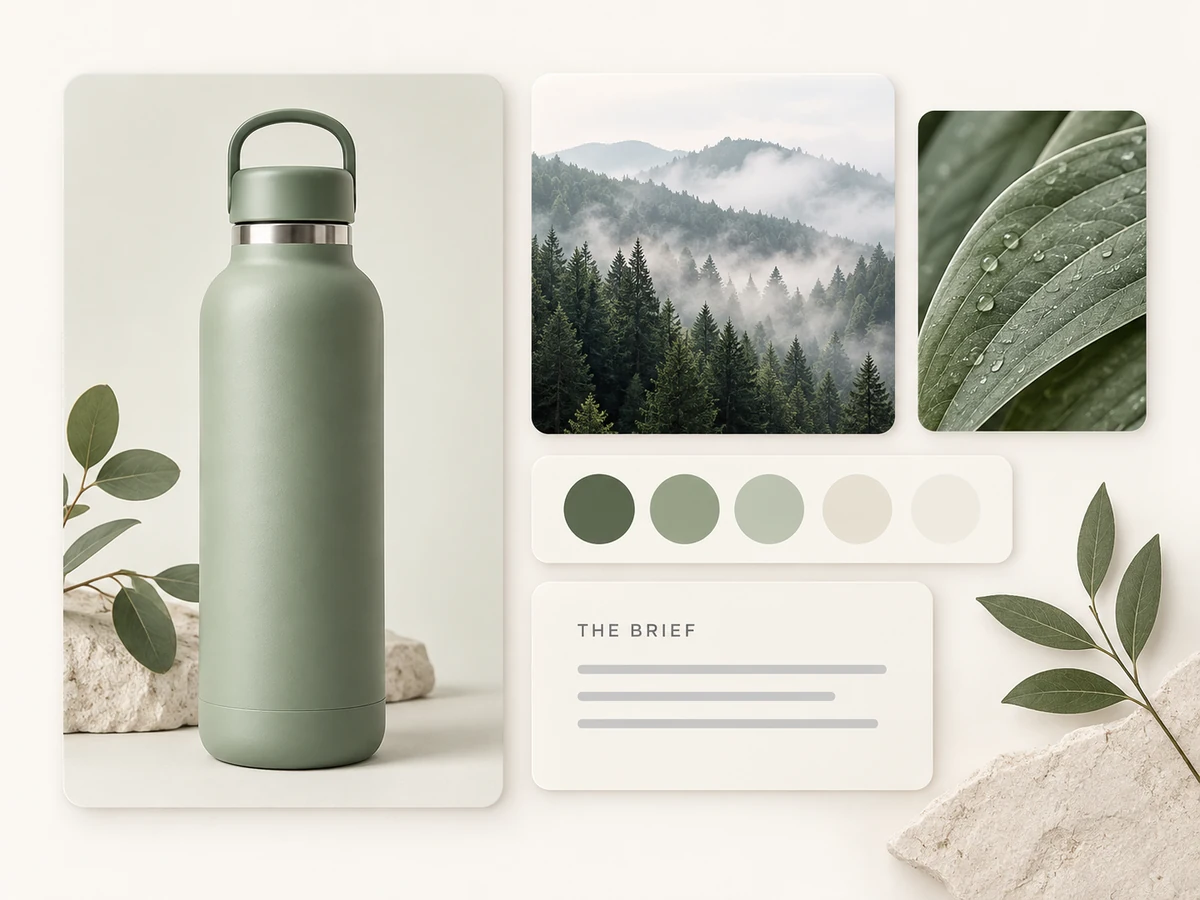
Provide the images or reference materials relevant to your idea. Describe the intended audience, subject, and mood. For example: "Develop a product content idea around this bottle for an outdoor lifestyle account. Use a calm green palette and keep the product central."

step 3

Guide the Project and Review the Result

Continue the conversation with specific feedback. Review the agent's responses and any generated content against your brief. Follow the tool options and credit requirements shown in the workspace as you proceed.

Give Your Creative Work More Context

Build Around Your Account's Personality

Use Account Persona to upload examples of your social content and introduce your visual style, voice, and preferences to the AI. Warm studio photography, a playful tone, or a restrained palette can become part of the direction you provide. Give new content a clearer relationship to the account it is meant for.
Build Around Your Account's Personality

Start With References That Explain the Idea

Add images and reference materials alongside your instructions. A product photo can establish the subject; a setting reference can communicate the mood. Explain what each reference contributes so the agent has a more useful brief than a short prompt on its own.
Start With References That Explain the Idea

Direct the Work Through Conversation

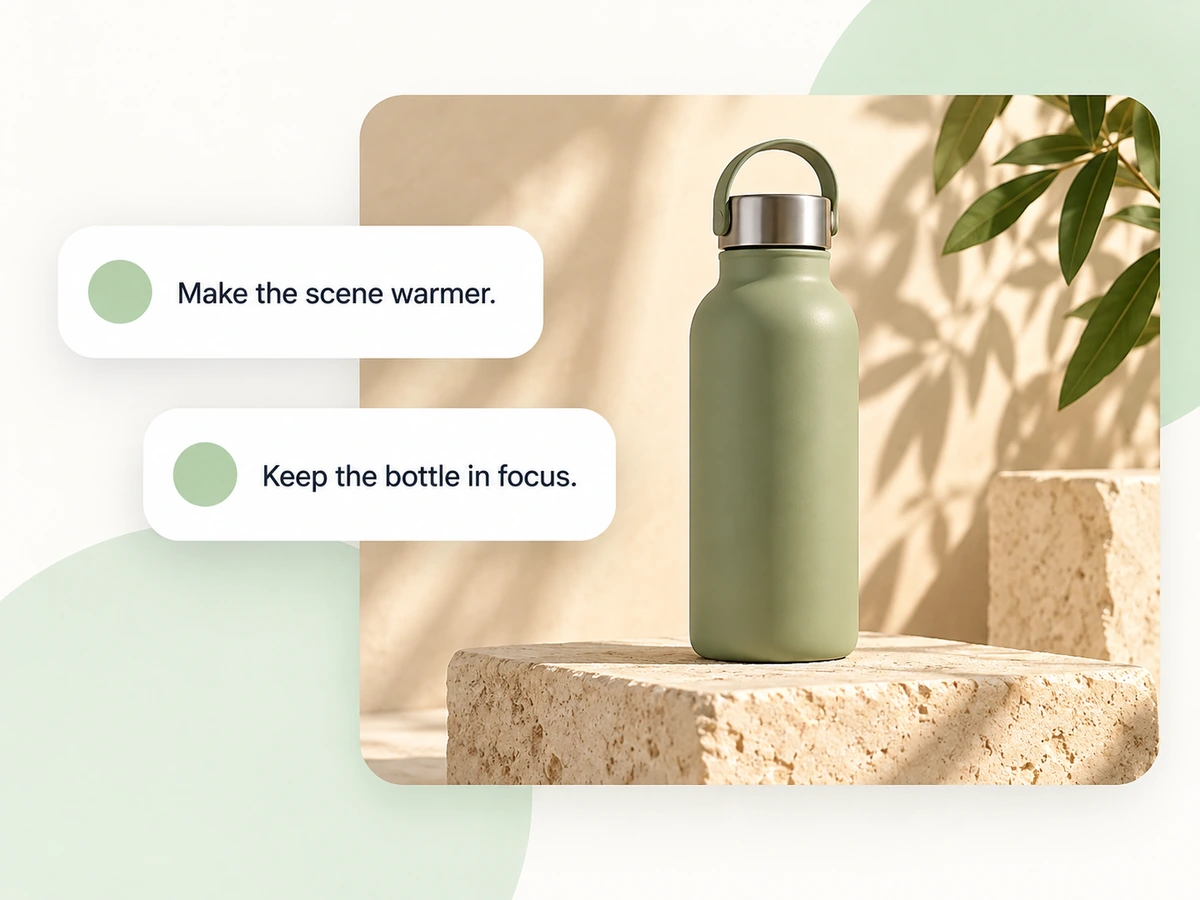
Use the conversation panel to describe your goal, audience, and creative priorities. Ask for a warmer setting, a simpler concept, or greater emphasis on the product. Clear feedback gives the agent direction as you develop a project; review its responses and outputs before deciding what comes next.
Direct the Work Through Conversation

Create a Project for Each Creative Goal

Start a new project in Content Creation for the task you want to explore. The workspace offers inspiration starting points such as UGC advertisements, product displays, video recreation, and cinematic short footage. Choose a direction and tailor the brief to the content you actually need.
Create a Project for Each Creative Goal

Frequently Asked Questions

What is DreamFace AI Canvas?

DreamFace AI Canvas is a workspace for developing content projects with an AI agent. It brings together Account Persona, Daily Inspiration, and Content Creation, with a conversation panel for ideas, images, and reference materials. Use it to communicate a creative direction and begin work on a defined content task.

How does Account Persona help with content creation?

Account Persona lets you upload existing social content so the AI can learn about your visual style, voice, and content preferences. It gives the agent context for the account you are creating for. Choose examples that represent the direction you want, and review new outputs for fit rather than assuming every detail will match automatically.

Can I use my own images and references in AI Canvas?

Yes. The workspace includes an input for ideas, images, and reference materials. Add relevant assets and explain their role, such as the product to feature or the atmosphere to explore. Use the supported upload options shown in the workspace and materials you have permission to use.

What kinds of projects can I start?

The workspace presents starting points including UGC advertisements, product displays, video recreation, character swaps, cinematic short footage, and music-video concepts. These help frame a request; the tools, input requirements, and generation options available for the selected task determine how you can proceed.

How is AI Canvas different from a standalone image generator?

A standalone image generator centers on producing an image from a prompt or reference. DreamFace AI Canvas adds a broader project context: your account persona, inspiration starting points, and a conversation about the content you want to develop. It is useful when you want to work from a creative brief rather than approach each visual as an isolated request.

How do credits work in AI Canvas?

Check the allowance and costs displayed in your DreamFace workspace before running a task. A free indicator or available balance does not mean every tool or generation is unlimited. Follow the account terms and task-specific requirements shown when you create.

A Workspace for the Brief Behind the Content

Your Style Is Part of the Brief

Account Persona lets you introduce the character of your social account through existing content. Use representative examples to communicate the visual identity and tone you want the agent to consider.

Words and Visual References Together

Describe what matters and show it when a picture can help. Subject images, mood references, and written requirements give your creative request complementary forms of context.

A Starting Point When the Brief Is Still Open

Explore the workspace's inspiration options when you know you want to make something but have not chosen a format. A suggested scenario can help you turn a general intention into a specific request.

You Make the Creative Decisions

Decide what the content should communicate and review whether the result fits. Check details such as product appearance, text, and character consistency before using generated material in a finished project.

More Valuable Features from Dreamface

Background Remover
Prepare a subject cutout when your creative references need a cleaner starting point.
Photo Enhancer
Explore clarity improvements for a photo you plan to use as reference material.
AI Filter
Try an artistic treatment to help define a visual direction for your next brief.
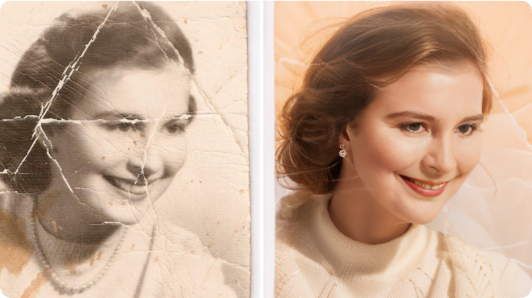
Old Photo Restoration
Explore restoration when a personal storytelling project begins with an older photograph.

They Love Dreamface

Sample Review: A Clearer Picture of My Account

I chose examples with the colors and studio atmosphere I use most often. Preparing that persona helped me explain what my account should feel like, rather than starting with a generic description.

Sample Review: References Made the Brief More Concrete

I had a product photo and a forest image that captured the mood I wanted. Explaining the role of each gave my request more direction than simply asking for outdoor content.

Sample Review: Feedback Was Easier to Put Into Words

I knew the scene needed to feel warmer, but I did not have a technical editing brief. Writing down that change and keeping the product as the priority made the next step clearer.

Sample Review: A Useful Starting Point for UGC

The UGC option helped me frame an idea for a product introduction. I still needed to explain the audience and message, but it gave me a practical place to begin.

Sample Review: One Project, One Clear Goal

I started a project for a product display and kept the brief focused on that task. It helped me avoid mixing the campaign idea with an unrelated short-film concept.

Sample Review: My References Became More Intentional

I used to collect lots of images without explaining why I liked them. Choosing a few and naming the lighting, colors, and mood I wanted made the creative conversation more useful.

Sample Review: A Clearer Picture of My Account

I chose examples with the colors and studio atmosphere I use most often. Preparing that persona helped me explain what my account should feel like, rather than starting with a generic description.

Sample Review: References Made the Brief More Concrete

I had a product photo and a forest image that captured the mood I wanted. Explaining the role of each gave my request more direction than simply asking for outdoor content.

Sample Review: Feedback Was Easier to Put Into Words

I knew the scene needed to feel warmer, but I did not have a technical editing brief. Writing down that change and keeping the product as the priority made the next step clearer.

Sample Review: A Useful Starting Point for UGC

The UGC option helped me frame an idea for a product introduction. I still needed to explain the audience and message, but it gave me a practical place to begin.

Sample Review: One Project, One Clear Goal

I started a project for a product display and kept the brief focused on that task. It helped me avoid mixing the campaign idea with an unrelated short-film concept.

Sample Review: My References Became More Intentional

I used to collect lots of images without explaining why I liked them. Choosing a few and naming the lighting, colors, and mood I wanted made the creative conversation more useful.