
Download the DreamFace App to Create Anywhere

Download on
App Store

Download on
Google Play

Install APK on
Android
Language
English- English
- Português
- 简体中文
- 繁體中文
- 日本語
- Español
- Bahasa Indonesia
- ไทย
- Tiếng Việt
- हिन्दी
- Русский
- Italiano
- 한국어
- मराठी
- Nederlands
- Norsk
- ਪੰਜਾਬੀ
- Polski
- Dansk
- Suomi
- Français
- Deutsch
- Svenska
- Kiswahili
- తెలుగు
- Türkçe
- বাংলা
- اردو
- العربية
- فارسی
- Ελληνικά
Language
Raven Tears
Upload Image
Click to upload an image
Try with our sample images
Sample Filter


4.9

Chrome Store

Global Users

4.9
Apple Store
Trusted by Leading Institutions Worldwide












How to Use the Raven Tears AI Filter
step 1 Upload Your Portrait
Add a clear photo of one person using the upload area. Choose an image with a visible face and even lighting.
step 2 Generate the Raven Tears Effect
Select Generate to apply this template and create a portrait inspired by its lace, crystal tears, raven and twilight setting.
step 3 View Your Gothic Portrait
Review the generated image and its facial details. If needed, try a clearer source photo for another result.
Raven Tears Key Features
Crystal Tear Makeup
Teardrop-shaped face jewels catch the soft evening light beneath the eyes, pairing with rich red lips for a striking gothic beauty look.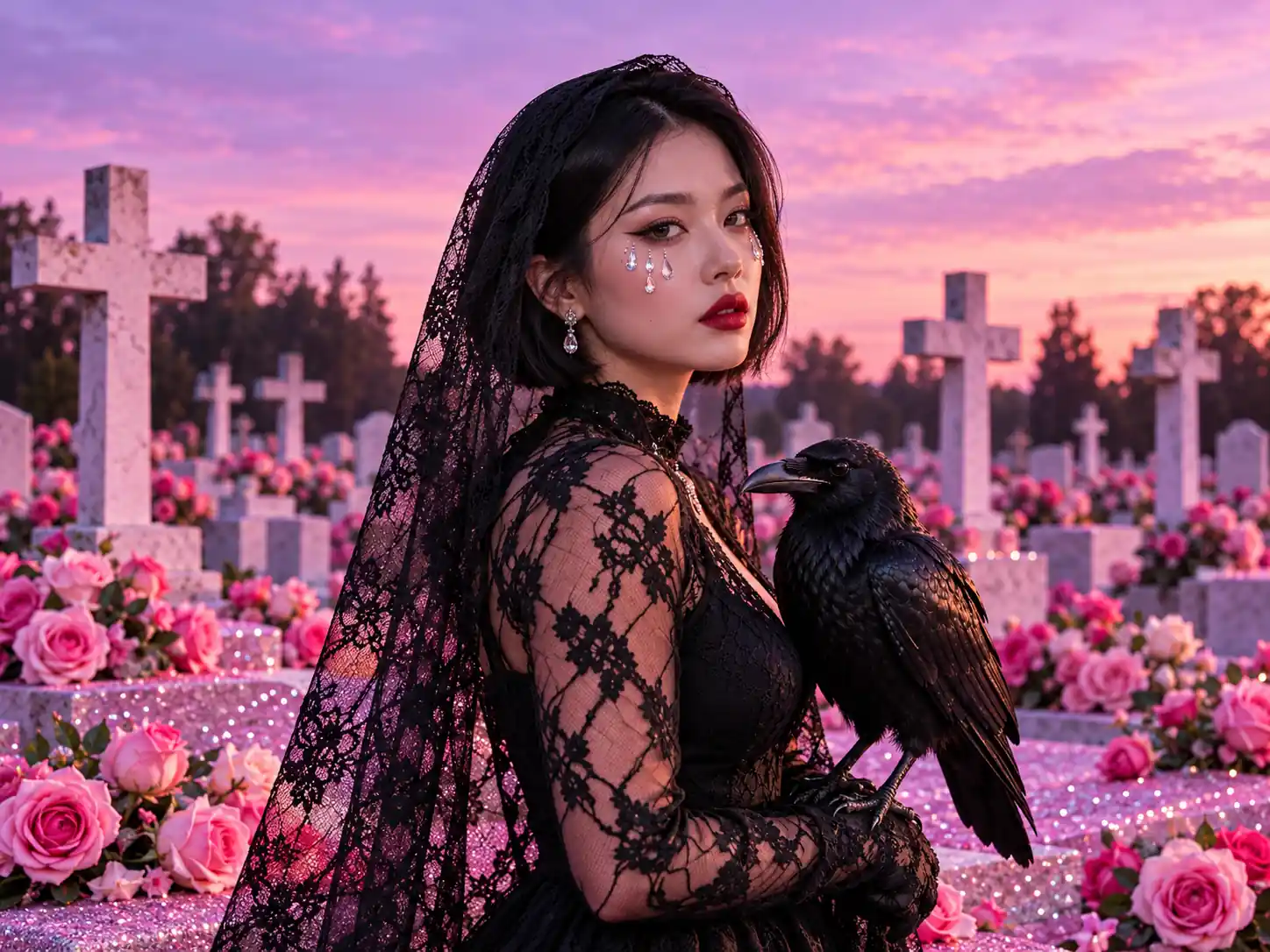
Black Lace Veil and Dress
A floral lace veil and matching sleeves frame the portrait with intricate texture. The dark outfit stands out against the delicate pink and purple setting.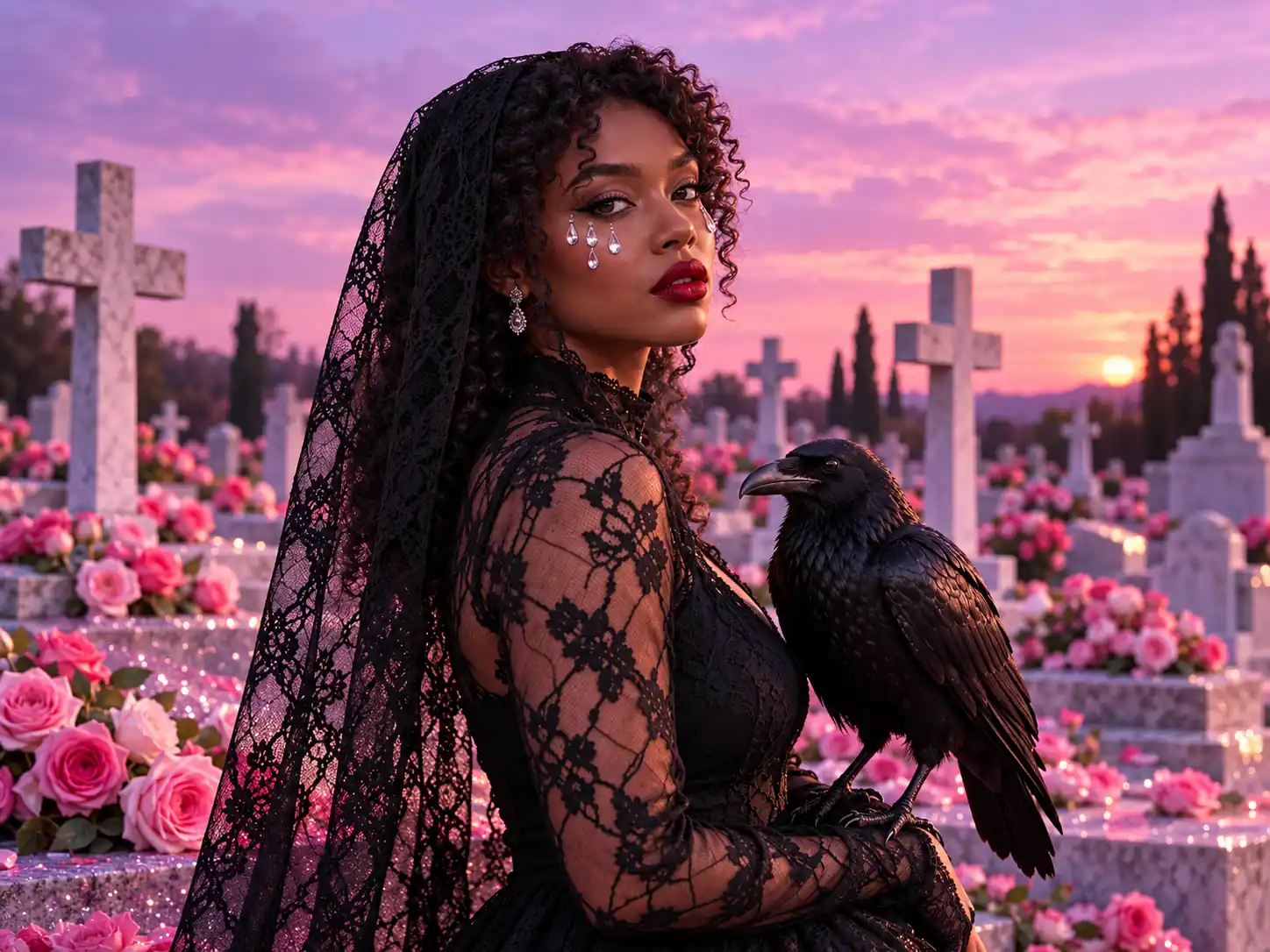
A Raven by Your Side
A black raven perched on the forearm adds a distinctive focal point, with glossy feathers complementing the dark lace and dramatic portrait pose.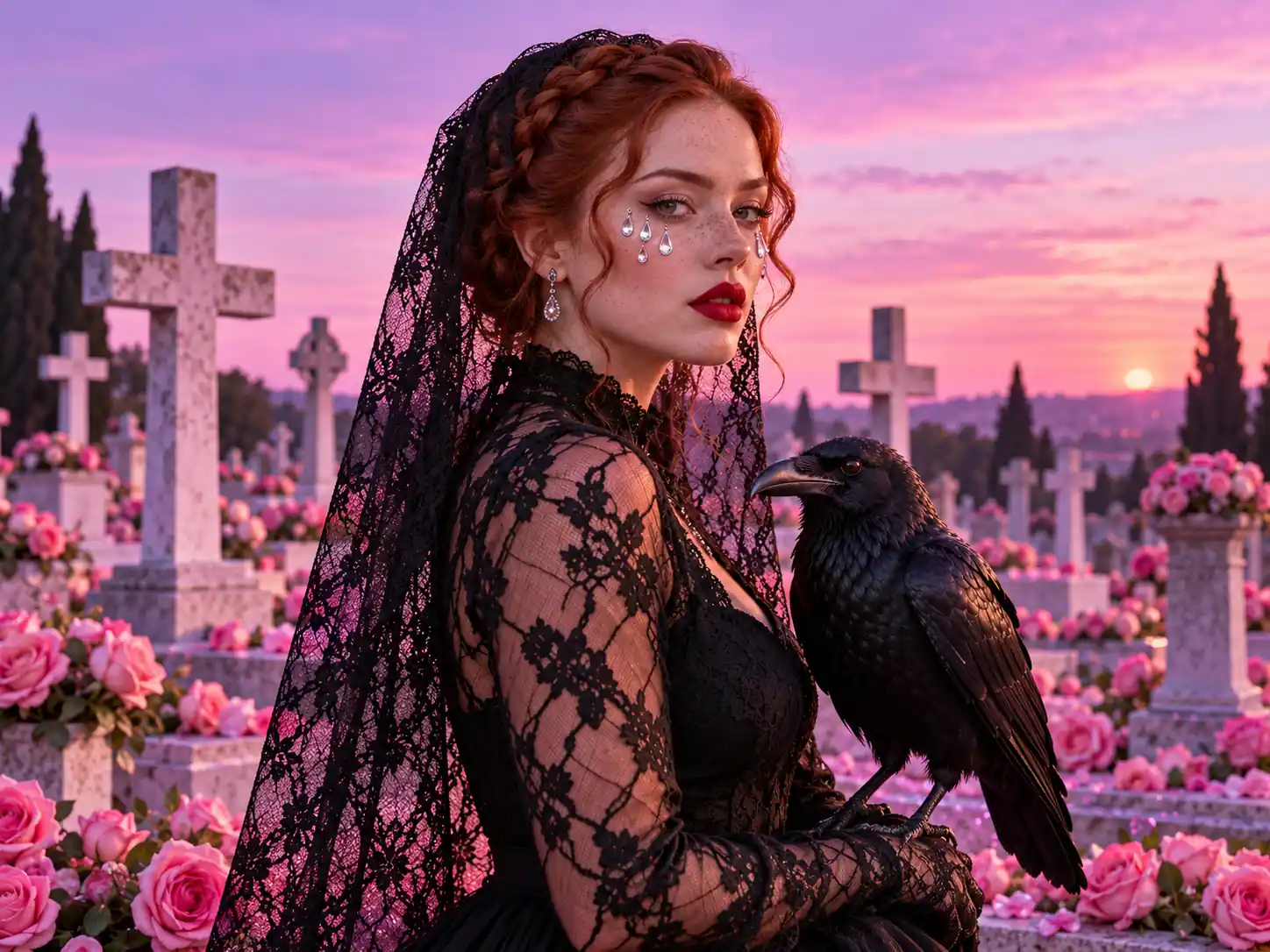
A Rose-Filled Twilight Cemetery
Pink roses, pale stone crosses and a lavender dusk sky create the signature backdrop, balancing gothic scenery with soft, romantic color.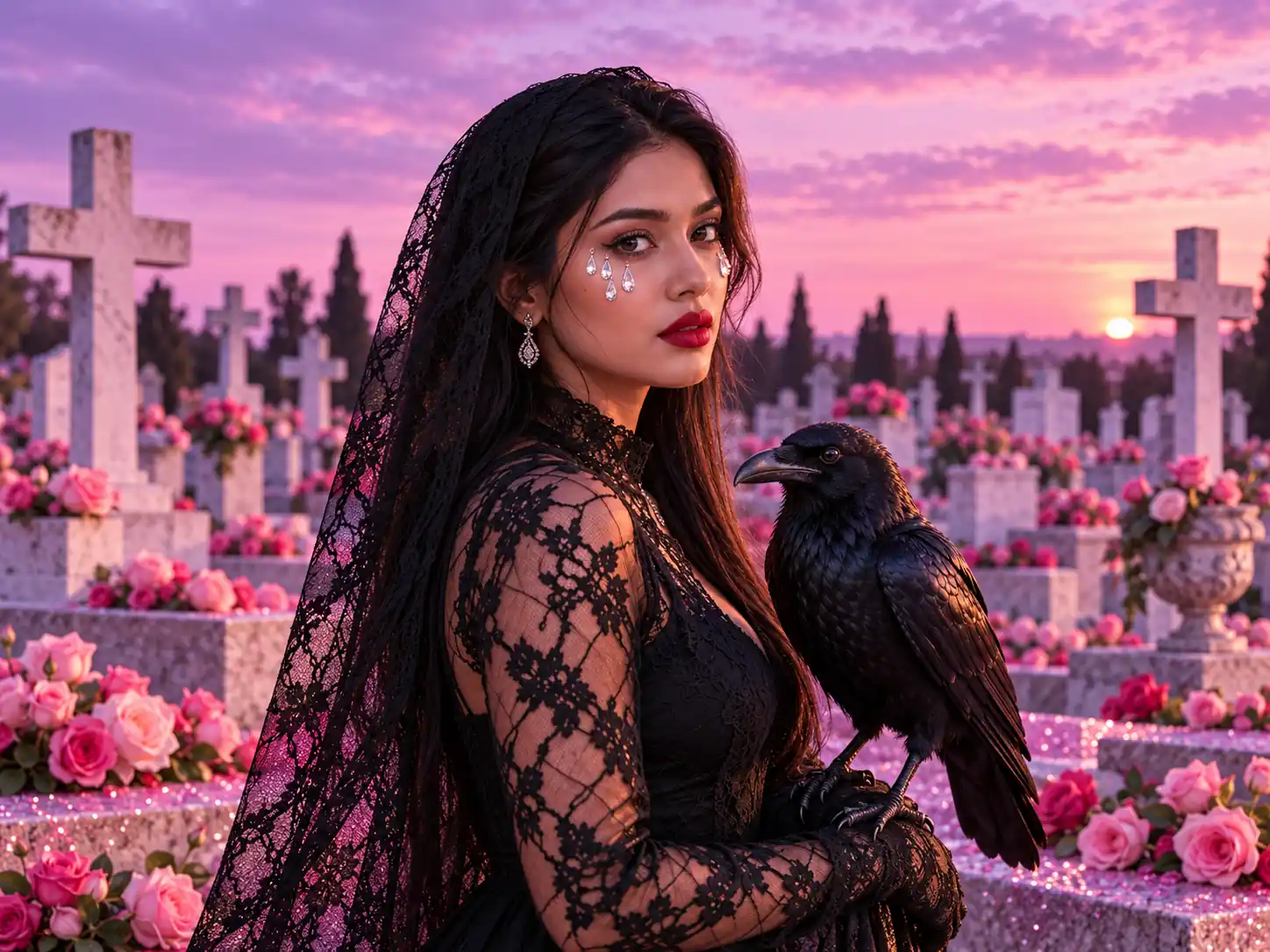
More Valuable Features from Dreamface
AI Kiss
Create AI kiss animations from photos.
AI Hug
Bring photos together in an AI-generated virtual hug.
Pet Video Animation
Turn pet photos into animated video content.
AI Video Maker
Explore AI tools for creating video content.
Frequently Asked Questions
What is the Raven Tears AI filter?
Raven Tears is a single AI portrait effect with crystal tear makeup, a black lace veil and dress, a raven and a pink-toned cemetery at dusk.
What kind of photo should I upload?
Use a clear photo of one person with the face visible. Heavy shadows, blur and objects covering the face can make the input harder to interpret.
Do I need to wear lace or hold a raven in my photo?
No. The lace styling, raven and cemetery scene are part of the template effect, so your source image can be an ordinary portrait.
Are the tears part of the makeup effect?
Yes. The template features decorative crystal teardrops beneath the eyes, giving the portrait a jeweled gothic makeup look.
Will the result look exactly like my original photo?
The effect reimagines your portrait within the Raven Tears scene. Facial details, hair and other elements may change, and results can vary with the input photo.
Can I customize the roses, raven or background separately?
This page applies the preset Raven Tears effect. Separate controls for the props, makeup or background are not shown in the provided interface.